 PageKiwi
Use PageKiwi for WordPress
PageKiwi for WordPress is a free plugin that lives in your WordPress admin menu, not on your public site. Install it once, press Check my site whenever you like, and fix what it finds, worst first.
1. Install it (about two minutes)
- Download the plugin. It's a zip file: don't unzip it.
- Log in to your WordPress admin (usually your site's address with /wp-admin on the end).
- Go to Plugins, then Add Plugin, then press Upload Plugin at the top.
- Choose the pagekiwi.zip file, press Install Now, then Activate Plugin.
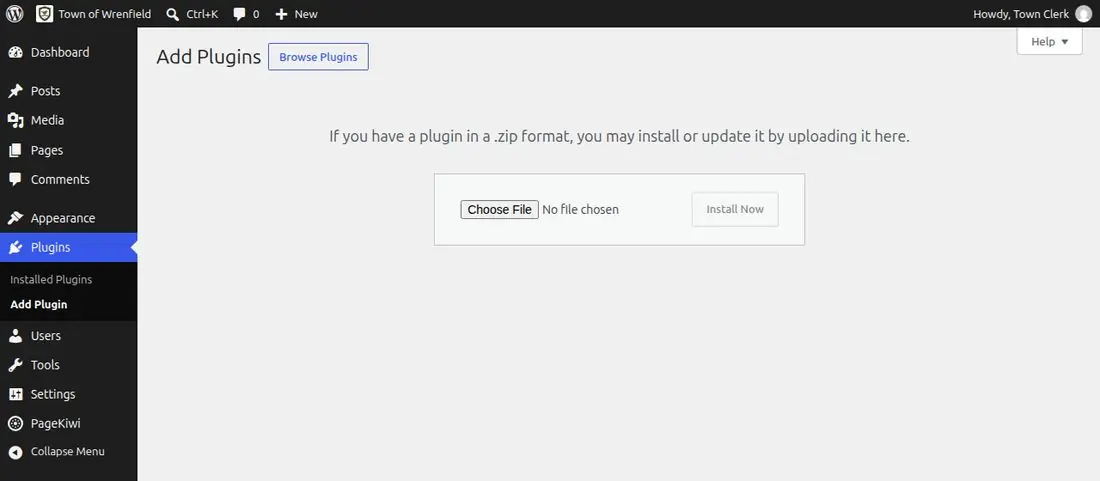
You need to be an administrator. Some managed hosts turn off uploading plugins; if the Upload Plugin button isn't there, send the zip to your web person.
2. Check your site
- Click PageKiwi in the menu on the left (it has a kiwi slice icon, near the bottom).
- Press Check my site. It reads your settings, Media Library and published posts and pages, and takes a few seconds.
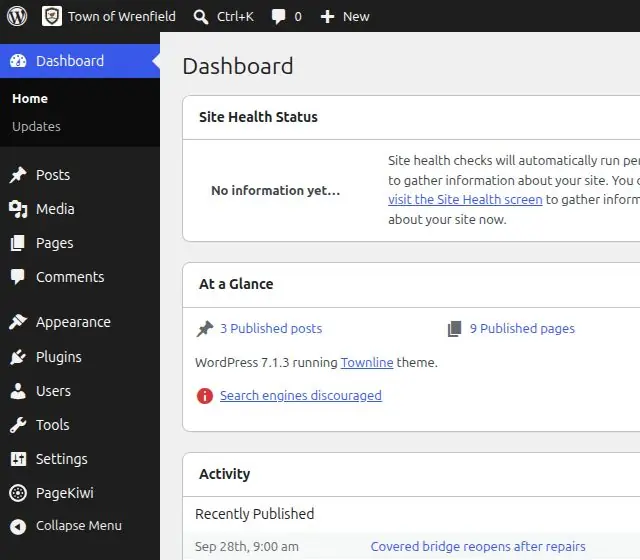
Check one page
While you're logged in and looking at your own site, the black admin bar at the top has a Check this page button with the kiwi. On a post or page it checks just that one and shows what's wrong. Anywhere else it says Check my site and opens the PageKiwi screen, where you press Check my site. Only administrators see it.

From then on, a small PageKiwi box on your Dashboard shows how many problems the last check found.
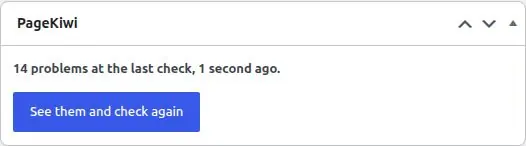
3. Fix what it finds
Problems are grouped into settings, pictures, links and headings. Each says what's wrong, where it is, and how to fix it.
- Fix first
These stop visitors or put your site at risk: a dead link, search engines turned away, updates waiting.
- When you can
These make things harder or slower, like a heavy photo or a heading out of order.
- Go there
Opens the right page in WordPress to fix it: the post, or the settings screen.
- Alt text
For pictures in your Media Library, type the description straight into the box in the list and press Save.
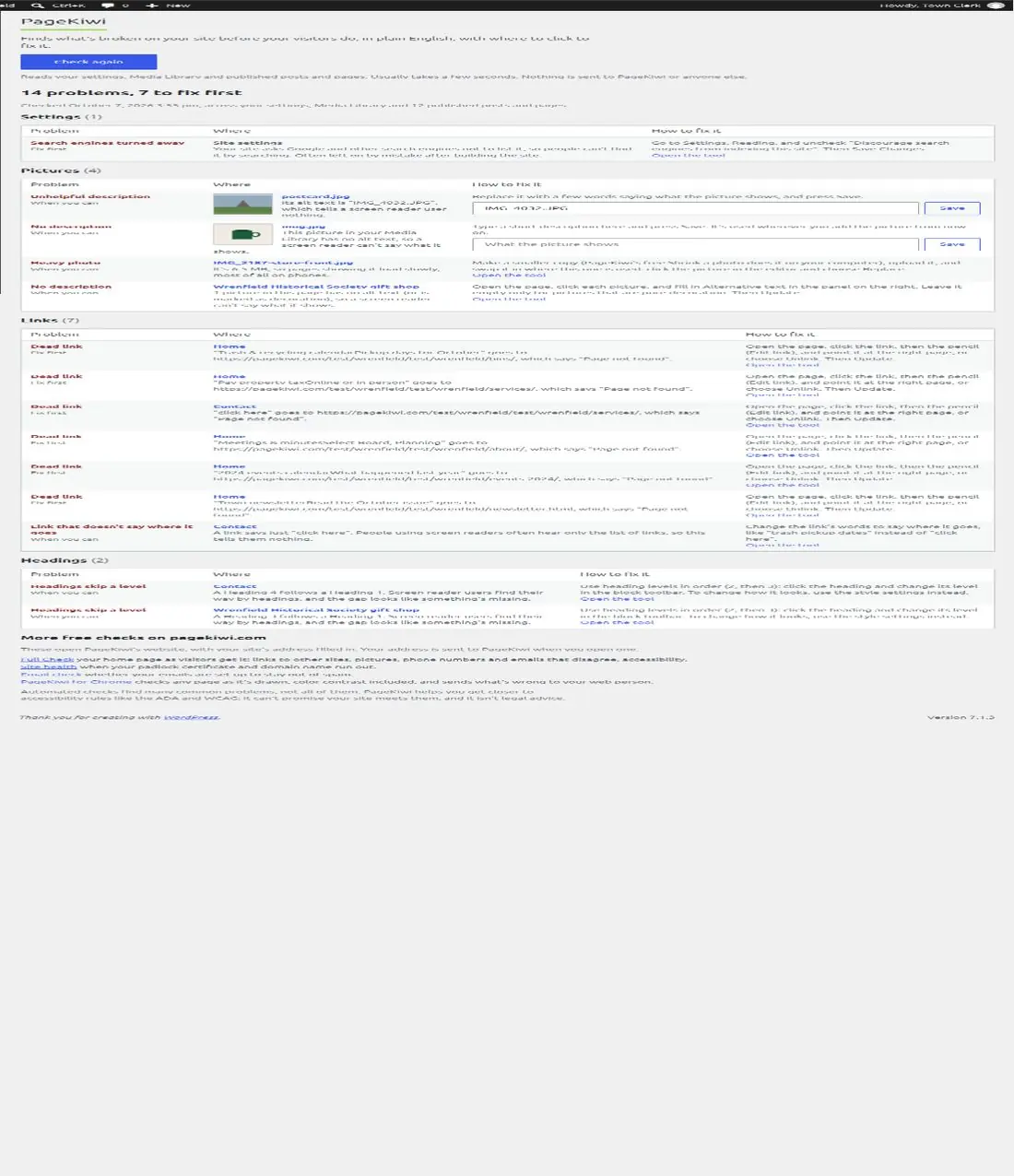
When you've fixed some, press Check again. Not sure what a problem means? Every problem, explained.
Questions
- Can my visitors see it?
- No. It's only in the admin area, for administrators, and adds nothing to your public pages.
- Does it slow my site down?
- No. It only runs when you press Check my site.
- Does it send my site anywhere?
- Nothing goes to PageKiwi. To test links, your own server asks your pages and up to 15 linked websites whether they still answer. The "More free checks" links at the bottom open pagekiwi.com with your address filled in, only if you click them.
- Why does a picture still say "No alt text"?
- WordPress copies a picture's alt text into a page when you add it. If you add alt text in the Media Library later, pages that already use the picture keep the old one: click the picture in that page and fill it in there too.
- How do I remove it?
- Plugins, find PageKiwi, Deactivate, then Delete. It removes what it saved, too.